Interface tour
A quick look at the Uncoder home screen, the editor and where each tool lives.
On this page
Uncoder has two places you work in: the Uncoder screens in the WordPress admin, where you manage your site, and the editor, where you design pages and templates. This tour shows what is where.
The Uncoder screens
After installing, the Uncoder menu appears in the WordPress sidebar. Home is your starting point.
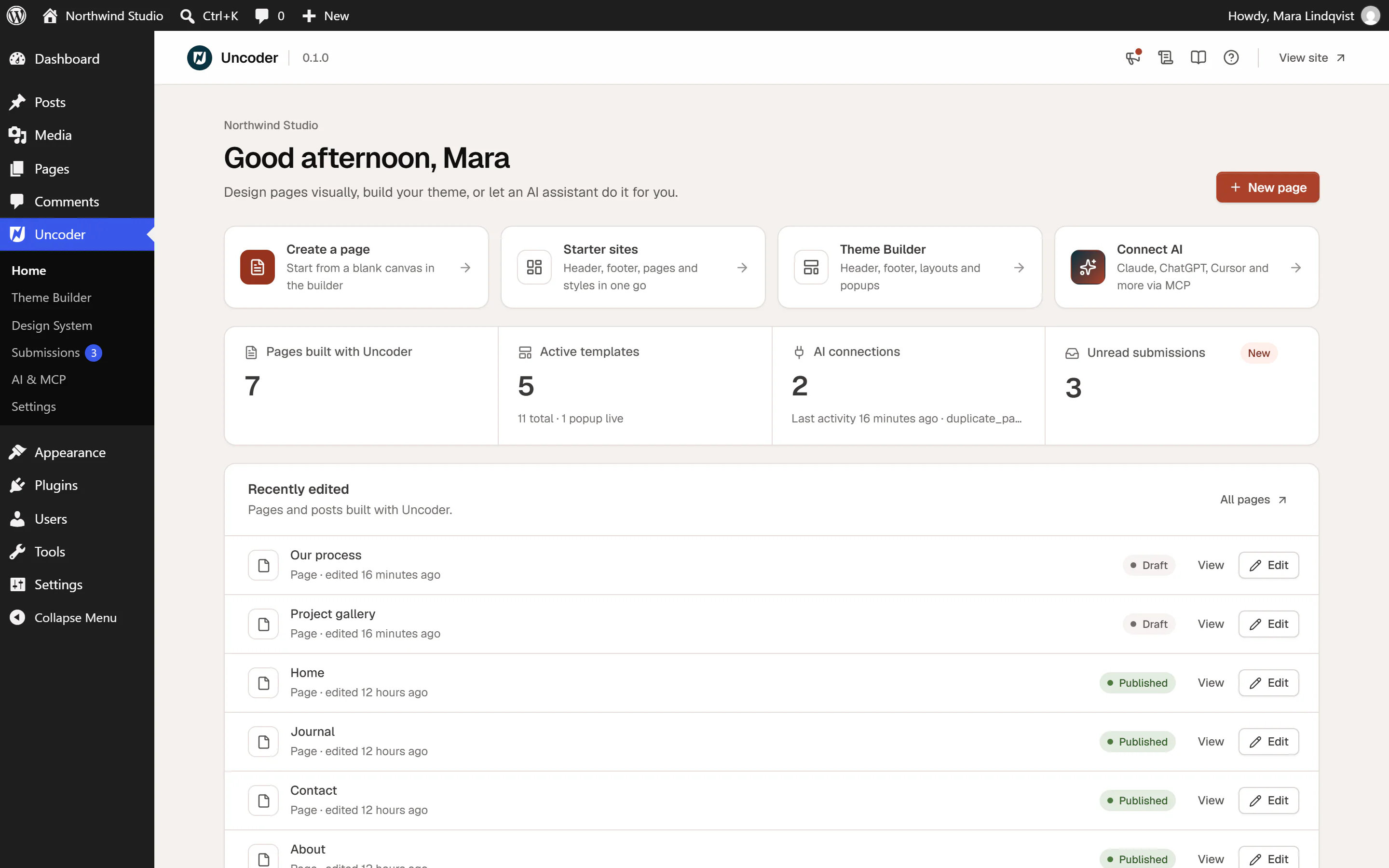
On Home you find:
- New page: create a page and open it in the editor.
- Quick cards: Create a page, Starter sites, Theme Builder and Connect AI.
- Get your site ready: a checklist with your first steps (build a page, publish a header and a footer, connect an AI assistant). It disappears when everything is done.
- Numbers at a glance: Pages built with Uncoder, Active templates, AI connections and Unread submissions.
- Recently edited: your latest pages and posts, with links to view or edit them.
The other screens:
| Screen | What you do there |
|---|---|
| Theme Builder | Headers, footers, blog and archive layouts, the 404 page, popups, mega menus, loop items and saved sections. See Theme Builder. |
| Design System | An overview of your colors, fonts, buttons and text styles, plus your custom fonts and icon sets. See Design System. |
| Submissions | Messages sent through your forms. See Submissions. |
| AI & MCP | Connect AI assistants and manage their access. See AI & MCP. |
| Settings | Roles, cookie consent, forms, SEO details, custom code, tools and more. See Settings. |
The bar at the top
Every Uncoder screen starts with the same bar.

- Uncoder and the version number. Click Uncoder to go to Home. Click the version number to open the Changelog.
- The breadcrumb shows the screen and section you are in, for example Theme Builder › Popups.
- What's new (megaphone): news about Uncoder, tips and guides. A dot shows that there is something you have not read yet.
- Changelog: what changed in each version.
- Docs (book): opens the guide for the screen you are on, in a new tab. In Theme Builder › Popups it opens the popups guide.
- Help (question mark): Getting started, Documentation, Support forum, Rate Uncoder and, for administrators, System info.
- View site: your site's front page, in a new tab.
The news and the changelog come with the plugin and update with it. Uncoder does not contact other servers to show them.
The editor
Open a page with Edit with Uncoder (from the Pages list, the page itself, or Home → New page). The editor fills the whole browser window. It needs a window at least 1024 px wide: on a smaller screen it shows The editor needs a larger screen, with Continue anyway and Back to WordPress.
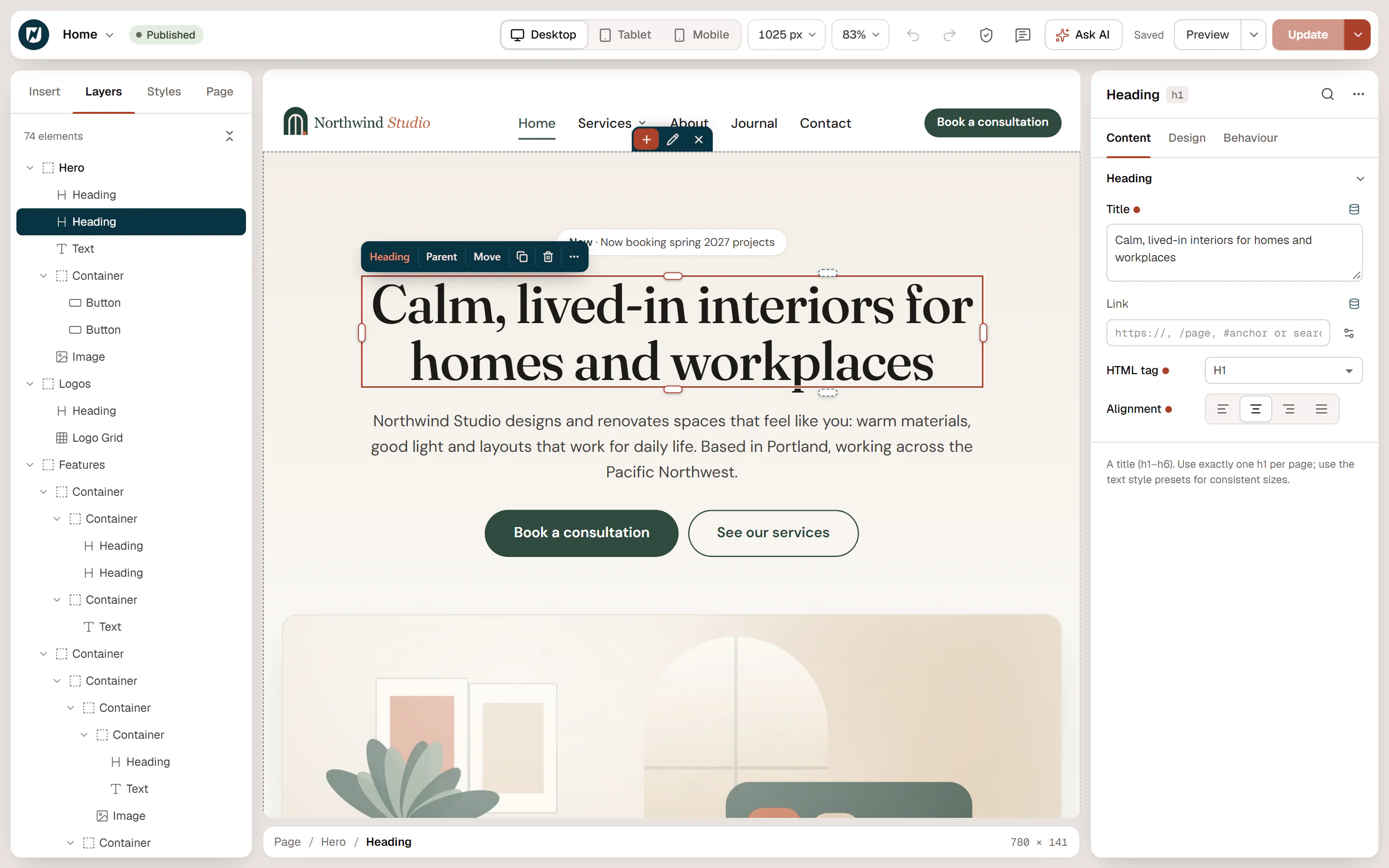
Top bar
From left to right: the Uncoder menu (behind the logo), the page title and status, the device buttons (Desktop, Tablet, Mobile) with canvas width and zoom, undo and redo, Checks, Notes, Ask AI, the save state, Preview and Publish (or Update). See Top bar.
Left panel
Four tabs:
- Insert: widgets (Elements) and ready-made Sections. See Adding elements.
- Layers: the structure of the page as a tree. See Layers.
- Styles: the site-wide Design System.
- Page (or Post, Header…): the settings of what you are editing. See Page settings.
Tools such as History, Find & replace, Checks and Notes also open in this panel, with a back arrow to return.
Canvas
The middle of the screen shows your page exactly as visitors will see it, with your theme's header and footer. Click an element to select it; it gets a toolbar with its name, Parent, Move, Duplicate, Delete and … for more actions. Double-click a text to type directly on the canvas. The path bar at the bottom shows where the selected element sits, for example Page / Hero / Heading.
Inspector
The settings panel, next to the build panel, shows the settings of the selected element in three tabs: Content, Design and Behaviour. Drag its grip ⠿ to float it anywhere, or dock it on the right. With nothing selected, it shows the page and shortcuts to Insert elements and Page settings. See Editing elements & the inspector.
Make it yours
- Prefer a dark editor? Choose Petrol night (dark) interface in the Uncoder menu.
- Prefer panels fixed to the window edges? Choose Edge-to-edge panels.
- Prefer the settings on the right, or floating? Use the panel icon in the inspector's header: Dock left, Dock right or Float.
- Press Ctrl+K (⌘+K on a Mac) for the command palette, with every command and its shortcut.
More options are in Editor preferences.