Cookie consent
Show a cookie banner, hold back tracking code until visitors agree, and support Google Consent Mode v2.
On this page
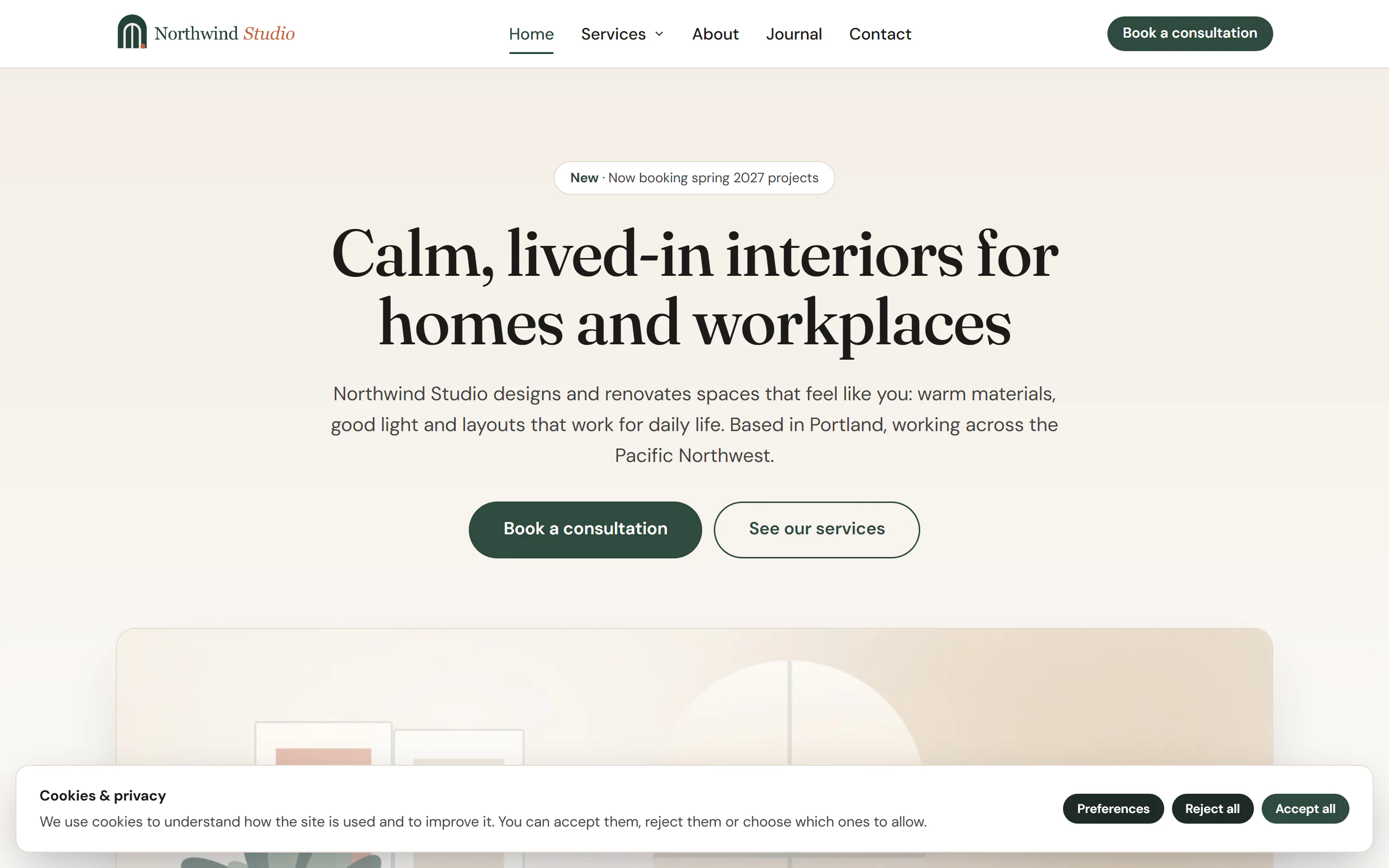
Uncoder has a built-in cookie banner. It asks visitors before analytics and marketing code runs, and it makes rejecting as easy as accepting. Your tracking snippets in Custom code wait until the visitor agrees to their category.
Turn on the banner
Open the setting
Go to Uncoder → Settings → Cookie consent.
Show the banner
Turn on Show the banner. The other options appear.
Adjust the look and text
Choose the Position, and change the texts if you like (see below).
Save
Click Save changes in the bar at the bottom of the screen.

| Setting | What it does |
|---|---|
| Show the banner | Shows the banner to visitors until they choose. Their choice is remembered for 180 days. |
| Position | Bar along the bottom, Box, bottom left or Box, bottom right. |
| Title and message | The banner's title and text. Leave them empty for the default "Cookies & privacy" and a short standard message. Links are allowed in the message. |
| Button labels | Your own words for Accept all, Reject all and Preferences. Empty fields use these defaults. |
| Privacy policy link | Adds a Privacy policy link to the message. Leave it empty to use the page chosen in WordPress under Settings → Privacy. |
| Google Consent Mode v2 | Tells Google tags (Analytics, Ads, Tag Manager) that storage is denied until the visitor agrees, and updates them when the visitor accepts. See Use Google Consent Mode. |
| Cookie settings button | Shows a small round button with a cookie icon after the visitor has chosen, so they can change their mind later. |
| Ask everyone again | Click Ask again to show the banner to every visitor again, for example after you add a new tracking tool. Save your other changes first. The current version number is shown next to it. |
What visitors can choose
- Accept all allows every category.
- Reject all allows only what is necessary.
- Preferences opens the three categories with a short explanation each, and a Save choices button:

| Category | Meaning |
|---|---|
| Necessary | Needed for the site to work, such as security and remembering the visitor's choice. Always on. |
| Analytics | Statistics about which pages are visited and how. |
| Marketing | Personalized ads and measuring campaigns. |
The choice is saved in a cookie called uncoder_consent in the visitor's browser. List it in your privacy or cookie policy.
Hold back tracking code until visitors agree
Add your tracking code as snippets in Settings → Custom code and give each one a Cookie category:
- Necessary — always runs
- Analytics — needs consent
- Marketing — needs consent
While the banner is on, snippets marked Analytics or Marketing are not run when the page loads. They start as soon as the visitor accepts that category, without a page reload. Visitors who reject never run them. When the banner is off, all snippets run as usual.
The ready-made Google tag (GA4) and Google Tag Manager snippets start as Analytics, and Meta Pixel as Marketing.
Use Google Consent Mode
With Google Consent Mode v2 on, Uncoder tells Google's tags at the top of every page that ad and analytics storage is denied. When a visitor accepts, it updates that signal. Google's tags then decide themselves what they may store.
When you use Consent Mode, put your Google tags (GA4, Google Ads, Tag Manager) in the Necessary category, so they load right away and follow the consent signal. Keep other tools, such as a Meta Pixel, in Analytics or Marketing.
Let visitors change their choice
- Turn on Cookie settings button for a small round button in the corner of the page.
- Or add a link anywhere, for example in your footer, with the address
#uncoder-consent. Clicking it opens the preferences. In the editor, type#uncoder-consentinto any link field.
Good to know
- Uncoder itself adds no tracking. Embeds from other services are a different matter: the Video widget can load YouTube and Vimeo only when played (Load player on click, on by default), and the Google Maps widget can wait for a click too (Load on click). See Video and Google Maps.
- The banner, its texts and its buttons are not a legal review. Check what your local law requires.