Site kits
Move a whole Uncoder site, or parts of it, to another WordPress site with a site kit: what is included, what never is, and how to import it.
On this page
A site kit is one .zip file with everything you built with Uncoder: the Design System, Theme Builder templates, pages and posts, menus, the images and files they use, custom fonts, settings and custom code. Use it to start a new site from an existing one, to move a site you built on your computer to a live server, or as a design backup.
Both parts are in Uncoder → Settings → Import & export. Only administrators can export or import site kits.
Export a site kit

Open Import & export
Go to Uncoder → Settings → Import & export.
Choose the parts
In Export this site, untick anything you do not want to include. The numbers show how many items each part has.
Export
Click Export site kit. Uncoder collects everything and your browser downloads the zip file.
What each part contains
| Part | Contents |
|---|---|
| Design System | Colors, fonts, text styles, sizes, buttons and classes. |
| Theme Builder | Headers, footers, singles, archives, popups, saved sections, loop items and mega menus, with their display conditions. |
| Pages & posts | Every page and post built with Uncoder, with its status. |
| Blog posts | Posts written in the WordPress editor, with their dates, categories, tags, featured images and SEO title and description, plus every category of the site. |
| Menus | Your navigation menus, their mega menus and menu locations. |
| Images & files | Every image and file those parts use, packed inside the zip. |
| Custom fonts | The font files you uploaded. |
| Settings | Uncoder settings, such as the post types, the cookie banner and your business details. |
| Custom code | Your head, body and footer snippets. |
What is never included
A site kit never contains passwords, API keys or other secrets:
- no AI writing or AI image keys, no newsletter service keys, no CAPTCHA keys
- no webhook addresses of forms (webhook, Slack, Discord), because they work like passwords
- no MCP API keys, connected apps or AI activity
Some settings belong to one site only and stay behind: maintenance mode, role access levels, the uninstall setting and how long form submissions are kept.
A site kit also does not contain form submissions, users, comments, posts and pages that were not built with Uncoder, other plugins or your theme.
A site kit is not a full backup of WordPress. Use your host's backup or a backup plugin for that. A site kit is the easiest way to move your designs.
Import a site kit
Open Import & export on the other site
Install and activate Uncoder there, then go to Uncoder → Settings → Import & export.
Choose the file
In Import a site kit, click Choose a site kit (.zip) or drop the file on it. The card shows the largest file the server accepts. Nothing changes yet: Uncoder only reads the kit.
Check what is inside
The card shows where the kit comes from, when it was exported and with which Uncoder version, and lists its parts with their counts. Untick anything you do not want.
Decide what to do with items that already exist
If pages, posts, templates or menus with the same name already exist, choose Keep mine, Replace mine or Keep both (see below).
Choose the options
Decide whether to Activate headers, footers and other templates and whether to Use the kit's home page.
Import
Click Import. Uncoder uploads the images first, then creates the templates, pages and menus. Keep the page open until it says Import finished.
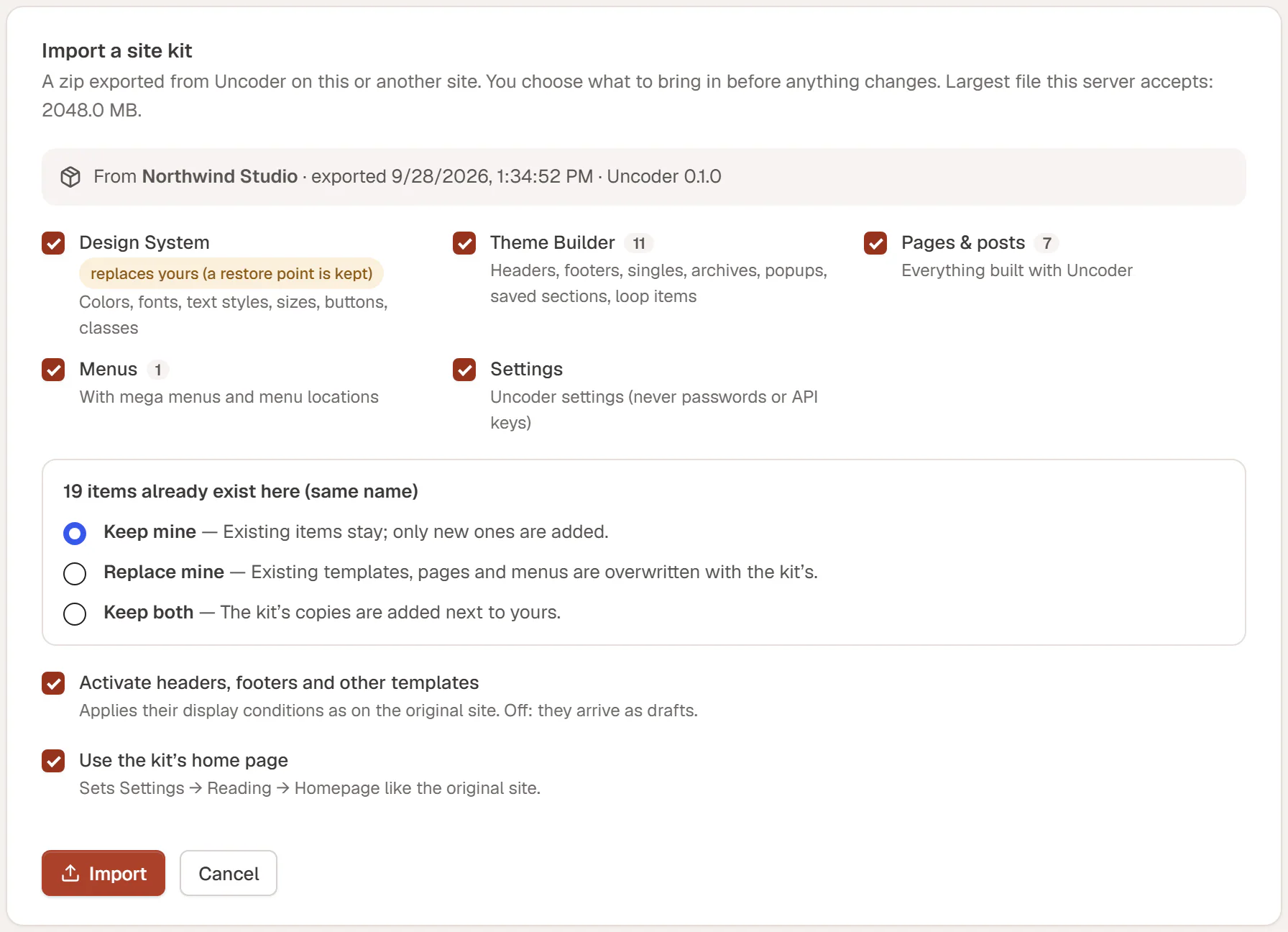
Items that already exist
| Choice | What happens |
|---|---|
| Keep mine | Your existing items stay as they are; only new items are added. The default. |
| Replace mine | Your existing templates, pages, posts and menus with the same name are overwritten with the kit's. |
| Keep both | The kit's copies are added next to yours. |
Options
| Option | What it does |
|---|---|
| Activate headers, footers and other templates | Publishes the templates with the display conditions they had on the original site. Off: they arrive as drafts. |
| Use the kit's home page | Sets the home page under Settings → Reading like on the original site. |
The Design System part replaces your current Design System, as the badge next to it says. A restore point is kept, so you can go back from the Design System history.
After importing
The Import finished message counts what was created, replaced and kept, and how many files were added to the media library. Below it, Worth a look lists anything that needs your attention, for example a template type that does not exist on this site. Each new item has an Edit link.
Good to know:
- Pages keep their status. Pages that were published on the original site are published here too. Templates follow the Activate option.
- Blog posts keep their dates, categories and featured images. Categories are matched by their slug, or created when they are missing, and loop grids, carousels and filters that name categories follow them.
- Links are updated. Images, templates, popups, menus and links between pages point to the new copies on this site.
- Importing twice does not duplicate images. Files that came from the same kit before are reused.
- Custom code arrives switched off. Check each snippet in Custom code and turn it on. Only users who may add unfiltered HTML can import snippets.
- Connect your services again. Enter your AI, newsletter and CAPTCHA keys on the new site, and paste form webhook addresses into the forms that need them.
- Multilingual sites: with WPML or Polylang active on both sites, pages and templates get their language.
- Starting a new site from a kit? On a fresh WordPress install, choose Replace mine, so the kit's pages and posts replace WordPress's sample page, privacy policy draft and first post.